ZOOM quick tutorial
**important note: Currently you can only host a webinar for 40 minutes. That time starts when you log in to start your meeting (even if your only doing prep for more info click here).
Setting up a Zoom call
There are many ways to start a Zoom meeting. The most basic way to through a web browser. Go to http://zoom.us and log in. FYI we do have a longer detailed tutorial as well called “ZOOM 101”.

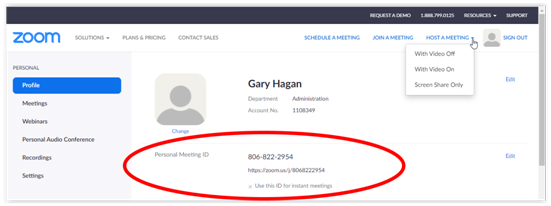
Start a meeting: Click on Host a Meeting at the top right of the window, and select with Video On or with Video Off.
If you are going to join the call using your computer’s speaker/microphone / headset, click on the Computer Audio tab and then click on Join with Computer Audio.
Your Personal Meeting ID will never change. You will use that for all Zoom conference calls that you start. You should copy and send the Personal Meeting link out beforehand to anyone you want to join the call. Copy and paste it into an email, a text message, a Facebook Messenger message, etc.
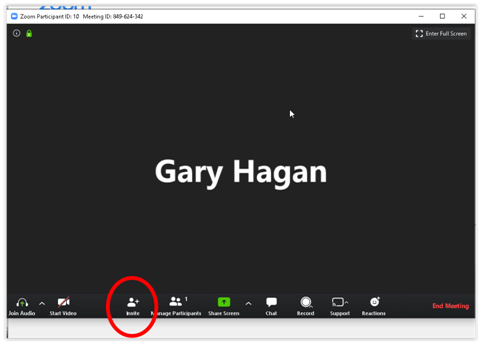
Once the call has started, you control the meeting through the dashboard:

You can add attendees to your meeting after you start it.
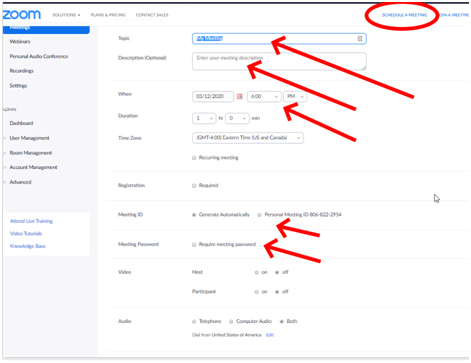
You can schedule a meeting/call ahead of time. click on Schedule a Meeting at the top right
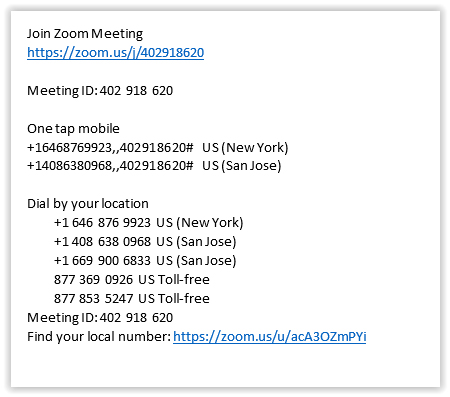
To participate in a Zoom conference: click on the link or dial the numbers provided below